01
App auto protection
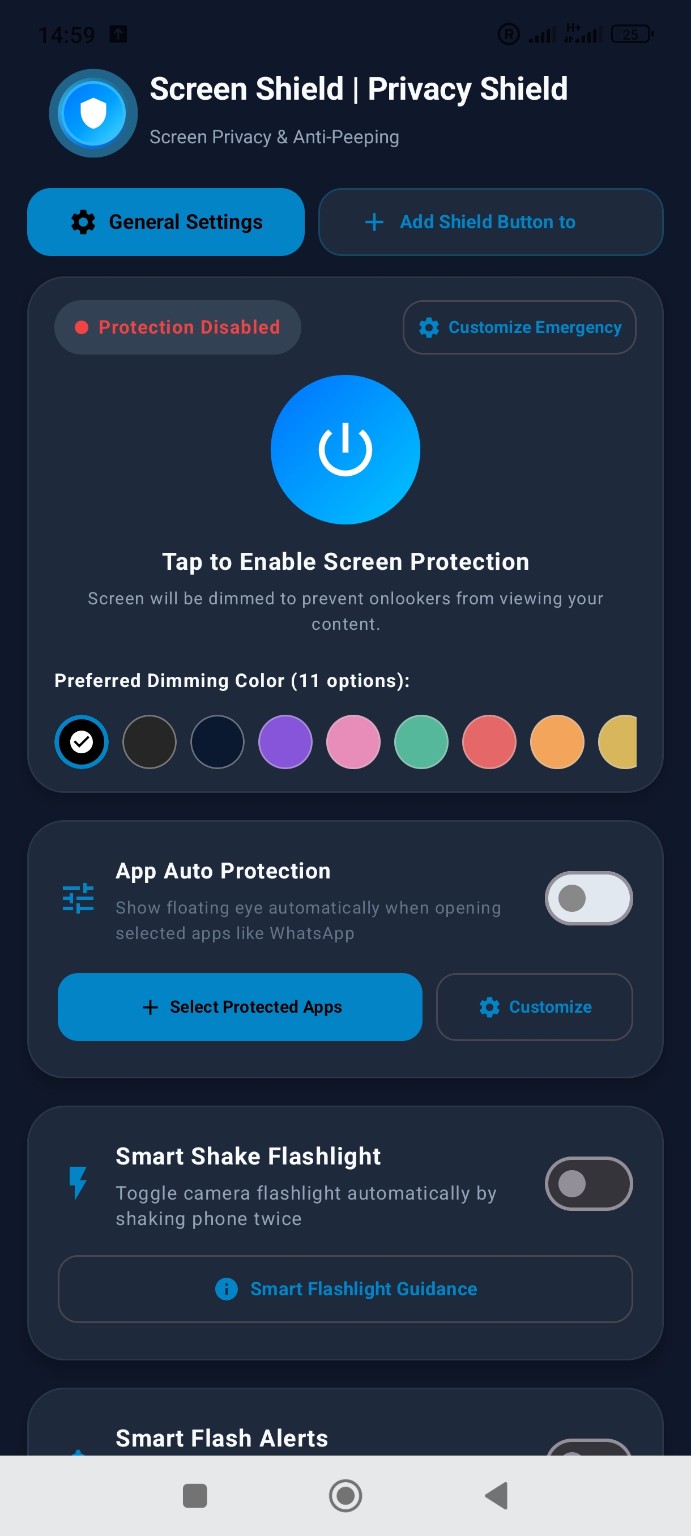
Select the apps where the floating eye should appear, so your privacy controls are close when you open a conversation.
 Screen Shield.
Give your screen a shade of its own. Dim what’s on display, pick the apps that need cover, and keep your messages more discreet in public.
 Actual app screenSS / 01
A cinematic tour of the real Screen Shield interface.
Watch DemoTry a tint and drag the slider to see how dimming changes this sample. The Android app offers 11 colours.
Platform 4 · Window seat
Select the apps where the floating eye should appear, so your privacy controls are close when you open a conversation.
Prepare a stronger dimming level for moments when you need to conceal what is on screen quickly.
Shake your phone twice to toggle the flashlight without hunting for a switch.
Use the camera flash as a visual signal for incoming calls and messages.
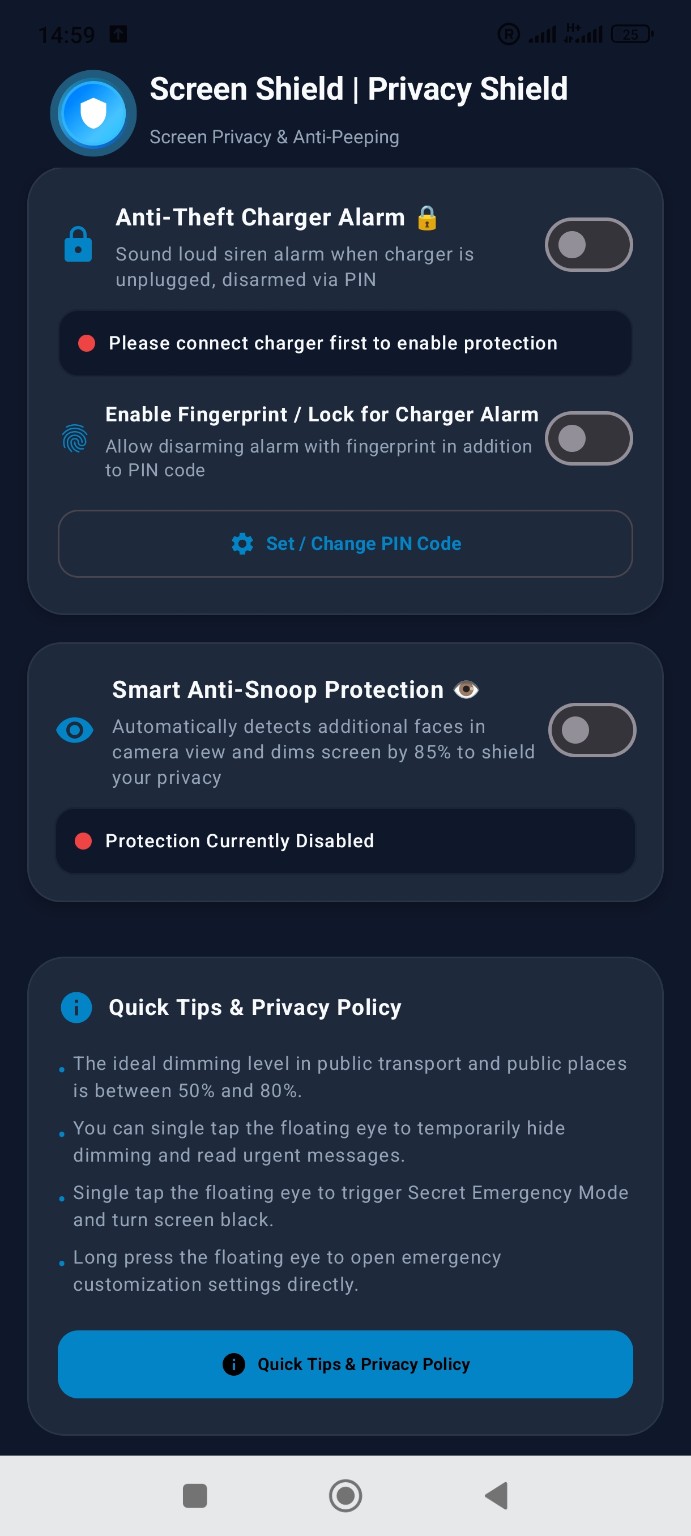
Connect the charger and arm the alarm. Unplugging triggers a siren. Disarm it with your PIN or the fingerprint option on supported devices.
When enabled, the front camera looks for an additional face. Detection triggers screen dimming to make content harder to read.
Explore the original Android screenshots. Select a screen to see it at full size.
Dimming changes the appearance of the display. It does not block screenshots or guarantee privacy from every viewing angle.
Yes. Open App Auto Protection in Screen Shield and select the apps you want to protect.
Connect the charger, set your PIN, then enable the alarm. You can enable fingerprint disarming on compatible devices.